 Sending
Voice chat for your Owlbear Rodeo table - no app switching required!
Sending is an Owlbear Rodeo extension that adds secure real-time voice chat, a GM music channel, and troubleshooting text chat directly inside your favourite virtual tabletop. Click the Join Call button, talk to your party, and stay focused on the game.
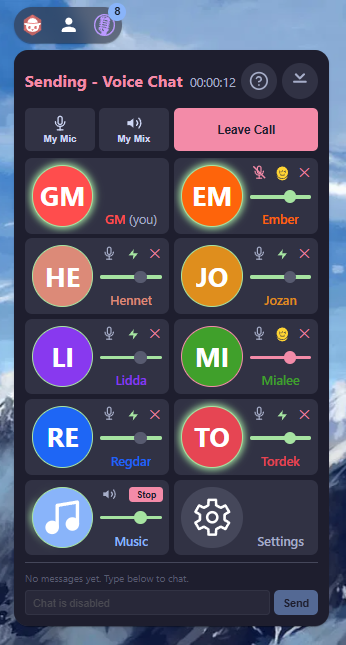
Key Benefits
🗣️ Built-in voice chat - talk with your players without leaving Owlbear Rodeo or juggling a separate app
👍 Minimal setup required - all players who are present are automatically added to the voice chat waiting room, all they need to do is click Join Call
🤝 Peer-to-peer connections - audio flows directly between players, keeping latency low and your conversations private, with fallback to a secure relay service if peer-to-peer is blocked
🎵 GM music channel - route background music or ambient sound from any audio source on your computer into the call
💬 Text chat - a lightweight troubleshooting chat with @mentions and notifications, right in the popover
🔬 Slimline mode - minimize the popover to a compact strip of avatars so it never covers your map
🔉 Per-player volume controls - raise or lower the music channel and each player's voice independently, or cut your own speakers whenever you need silence
✅ Auto-rejoin - if your browser reloads, Sending automatically brings you back into the call
How It Works
Sending uses WebRTC, the same technology behind Discord, Google Meet, and other modern voice apps. The difference is that Sending connects every player directly to every other player (a "mesh" network) rather than routing everything through a central server.
What this means for you:
- No audio server - your voice data travels straight from your browser to every other player's browser. Nothing is recorded or stored
- Encrypted - all WebRTC connections are encrypted by default. No one outside the call can listen in
- Low latency - direct connections mean less delay, so conversations feel natural
- Great for RPG groups - mesh works beautifully for the typical 4-8 player party; everyone connects to everyone else without any extra setup
⚠️ The only time audio passes through a server is if you explicitly configure a TURN relay, for players behind restrictive firewalls or VPNs that prevent peer-to-peer discovery (see the TURN Server section below).
Getting Started
1. Install The Extension
Copy the Sending manifest URL:
https://sending-btvl.onrender.com/manifest.json
Then head to your Owlbear Rodeo Room → Extras → Extensions → + (Add Custom Extension), paste the URL, and confirm:
2. Enable **Sending** In Your Room
While still within the Extensions Manager popover, make sure Sending is toggled on for this Room:
You should see the Sending icon appear in the top-left extension Action tray.
3. **Grant permissions**
OBR will ask you to allow microphone access and audio autoplay. Accept both; Sending needs the microphone to transmit your voice, and needs autoplay to let you hear other players.
Working with Under-18s (Safeguarding) - GM-only
Sending has a special Safeguarding mode (under-18s) that forces all members into a silent 'waiting room' whenever the GM is not present. This can be found in the GM's Settings page, just below the faders and the mic selector, and this setting persists between sessions:
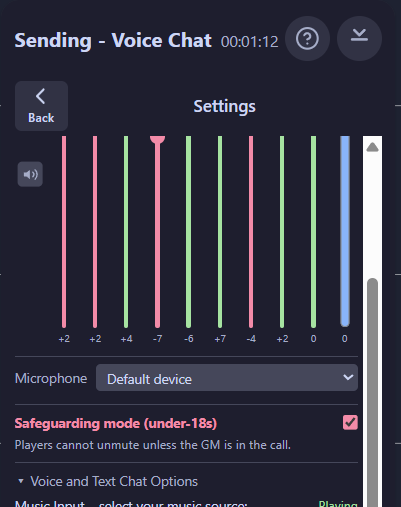
If Safeguarding mode is enabled, all player mics are muted (and cannot be unmuted) and text chat is disabled (and cannot be requested):
- before the GM joins a call at the start of a session
- during any GM disconnect events mid-session (eg. during a browser tab refresh or a network outage)
- after the GM leaves the call when the session ends
Whenever the GM is absent, anyone who was already joined to the call or has just joined to the call will see their own mic mute button activated and unavailable to them, and will see a warning message on-screen:
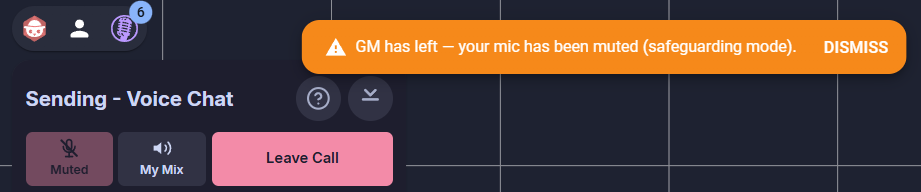
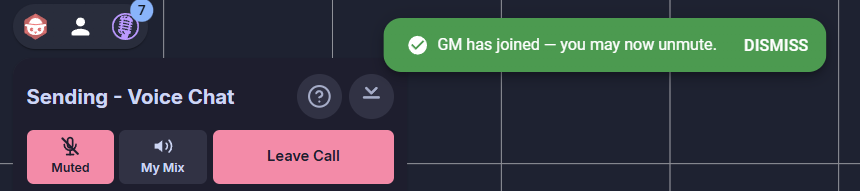
And as soon as the GM (re)joins the call, another notification message is seen, and the players' own mic mute button becomes available to them once again:
Joining a Call
- By default, Sending will open its own popover whenever the Room is reloaded, but if it's not currenly open just click on its icon
- In the popover, click Join Call in the upper-right corner
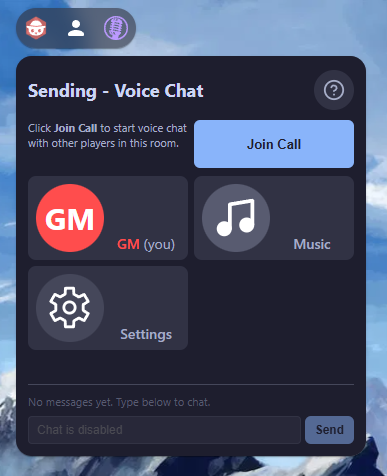
- Your browser will ask for microphone permission if it has not been granted before. Click Allow
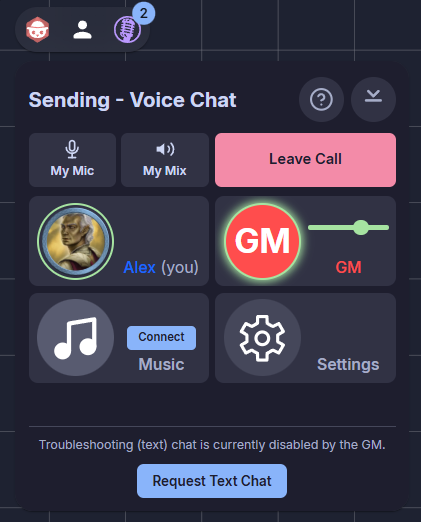
- Once connected, you will see your avatar get a green ring in its player card, and the join button will change to Leave Call
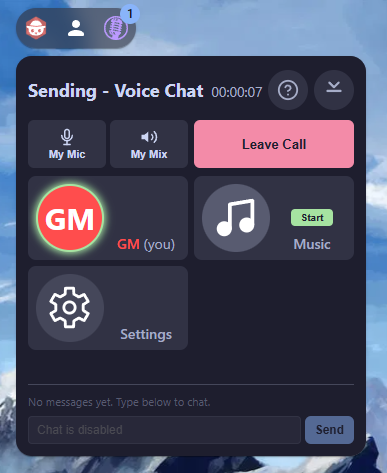
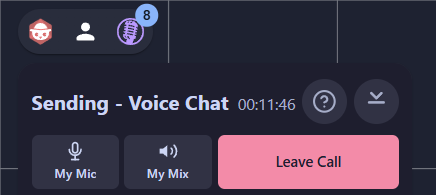
When you are connected, two buttons appear to the left of the Join/Leave button:
- My Mic - toggle your own microphone on or off; the button turns red when you're muted
- My Mix - toggle deafen mode, which silences all incoming audio except notification tones; the button turns red when deafened
The Player Grid
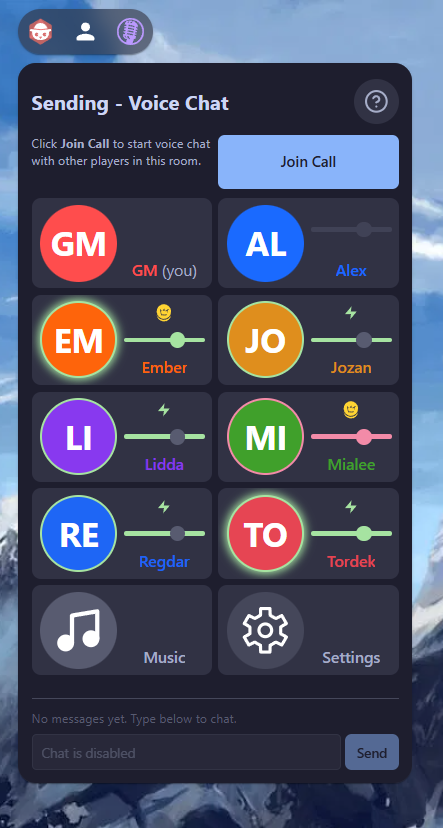
The main area of the popover is a two-column grid showing every player in the room. Each player card who isn't you will display:
- Avatar circle - shows the player's colour and initials (or a token image if the GM has assigned one)
- Volume slider - drag left or right to adjust that player's volume relative to others. A gain readout appears on the avatar while you drag
- Player name - shown below the avatar, with "(you)" next to your own
Avatar Ring Colours
The border around each player's avatar tells you their status at a glance:
| Ring | Meaning |
|---|---|
| Green ring with glow | Connected and talking |
| Green border (no glow) | Connected and quiet |
| Red border | Muted (either self-muted or muted by the GM) |
| No border | Not in the call |
Below the player cards you will also see a Music card and a Settings card, described in the sections that follow:
GM-only Controls
If you are the GM (Game Master), you have extra powers on each player card:
 Mute button - you can force-mute a player, eg. if their mic has a lot of background noise present even when they're not speaking. Their microphone is silenced for everyone, and a microphone-off icon
  appears on their card
- Connection type indicator - a small icon shows whether each player is connected directly via STUN
 or relayed via TURN
  . This is helpful in identifying players who can only connect through the TURN relay service, which you can set up to provide maximum connectivity reliability.
⚠️ If you see any player cards showing the TURN icon, you may want to monitor their combined bandwidth costs on the TURN server - configuring the server and checking its costs are both explained in the TURN Server section below.
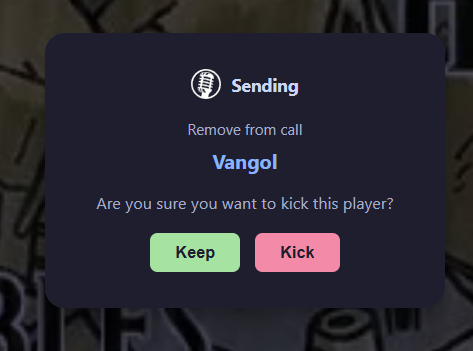
- ✕ Kick button - this red icon removes a player from the call - perhaps they left the session early and forgot to disconnect! A confirmation dialog appears before the kick goes through:
- Avatar Picker - As the GM, you can click any player's avatar circle to open a picker popover. This is automatically populated with one plain circle in their current OBR player colour and the first two letters of their name. Also, if that player owns any Character-layer tokens in the current Scene, they will also be added to the avatar picker.
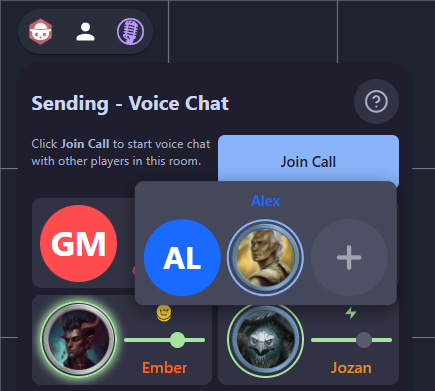
- If the player doesn't own any tokens, you can click the last position in the picker to enter manual selection mode, and you'll see the outline of that position pulse with a blue border - either click on any Character-layer token in the Scene to add that image to this player's picker, or click the pulsing position in the avatar picker to cancel. Select any avatar from the picker to replace the current selection, and the picker supports horizontal click-drag scrolling if a player owns many tokens - often true of the GM!
Call Duration
The GM also sees an elapsed time display in the header, showing how long the current call has lasted, in HH:MM:SS format.
Music Channel
The Music card in the player grid lets the GM stream a secondary audio source into the call from their device - typically background music, ambient soundscapes, or sound effects from a separate application like https://kenku-fm.
How to Use (GM)
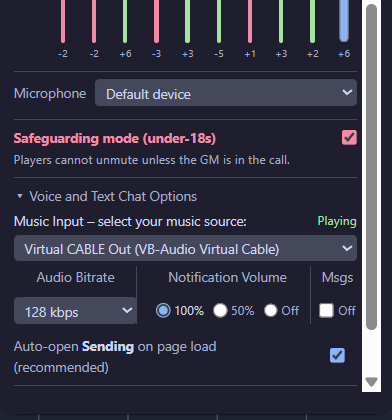
- Open the Settings panel and select a music device with the Music Input dropdown. ⚠️ This can be any audio input that your operating system recognises - for example, a virtual audio cable (recommended), a stereo mix, or a loopback device from your music player
- Press the Settings Back button to return to the player grid, and click the Start button on the Music card. (The Start button is greyed out until you select a device.), and everyone will hear any audio that is already streaming from the Music Input source
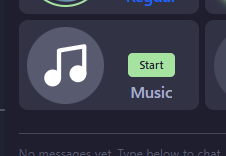
- To stop the music, click the Stop button on the Music card, and everyone will hear the music cease
Note that as GM you can Start the Music channel and then independently alter how loud it is for you with the card's volume slider, and can also mute the Music in your own mix with the card's small speaker button, without affecting your players.
How It Looks
- When music is playing from the selected source, the Music avatar shows a rotating green glow ring - a distinctive animation that makes it easy confirm visually that audio is being received and shared
- When music is not playing from the selected source, the Music avatar shows a thin green ring indicating that it is ready but detects no audio signal
- When music is muted, the avatar shows a red border, just like a muted player.
- When music is stopped, the avatar is grey.
Player Controls
Players (non-GMs) see a Connect button on the Music card if music is not yet playing or if their connection to the Music channel has been interrupted. Clicking it sends a request to the GM's device to reconnect, or to start the music if it is currently stopped. Once music is playing, players can adjust the music volume or mute/unmute it for their own mix.
Text Messaging
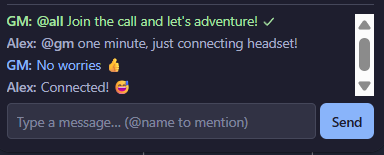
Sending includes a lightweight text chat at the bottom of the popover, intended for troubleshooting (eg. "I can't hear you, can you hear me?", "Your mic is cutting out") rather than as a primary chat system.
Key Features
- GM controls access - text chat is disabled by default. The GM can enable it in their Settings panel under the Msgs label
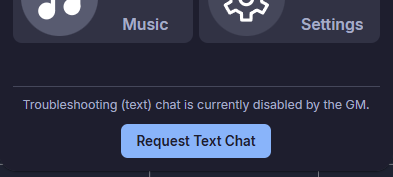
- Player request - if chat is disabled, players see a "Request Text Chat" button. The GM receives a notification and can accept or reject the request
- @mentions - type
@followed by a player's name to mention them. An autocomplete dropdown appears as you type - on keyboard you can use the arrow keys to scroll the options and use Enter to select, on touchscreen just touch the name of the intended recipient in the list. Mentioned players receive a modal notice in the centre of their screen and an unmutable chime notification, and the sender sees their original message in red text until the recipient acknowledges it, and then it turns green:
>
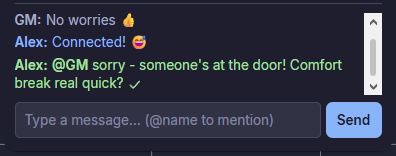
- all of the sender's messages are in blue text (unless they are @mentions, as detailed above) and the rest of the chat members' messages show in grey text
- @all (GM-only feature) - the GM can type
@allto mention every player at once - 250-character limit - a character counter appears as you approach the limit
- Rate limiting - a brief "Please wait" indicator appears if you send messages too quickly
When the GM has chat disabled, everyone's input field is greyed out with a "Chat is disabled" placeholder, serving as a reminder that chat is turned off. Players can request chat to be enabled - helpful if they drop off the voice call and can't reconnect!
Slimline Mode
When you are already in a call and have your mix set just as you like it, if you want to reclaim screen space, click the minimize  button (a small circle in the top-right corner of the header) to enter slimline mode. Slimline mode replaces the full popover with a compact strip of avatar circles. The popover resizes to fit only the avatars, so it takes up much less space on your screen, and it rescales automatically so that if you can fit the minumum useful avatar size, you can display the different Slimline modes.
Three Layouts
Click the layout button (it shows the icon and the name of the next layout mode) to cycle between:
- Row -- all avatars in a single horizontal row.

- Column -- all avatars stacked vertically.
- Grid -- avatars arranged in a two-column grid.
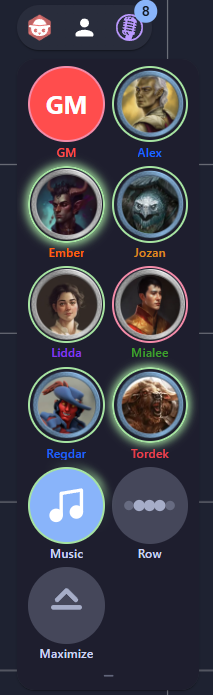
Your layout preference is saved and will persist across sessions.
Interactions in Slimline Mode
- Click your own avatar - toggle the mute on your own mic
- Click the Music avatar - GM: start or stop music, Player: toggle local music mute
- Click the Maximize button - return to the full popover
- Click a remote player's avatar (GM-only) - toggle GM-mute on that player
The Music avatar is always visible in slimline mode, even when music is stopped, so it stays in a consistent position.
Settings Panel
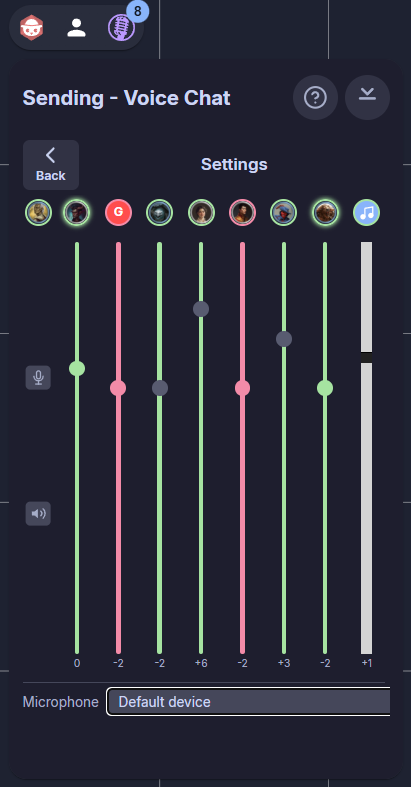
Click the Settings card (the cog icon at the end of the player grid) to open the full settings panel. Click Back to return to the player grid.
What You Will Find
For all players:
- Volume faders - large vertical volume sliders (ideal for fine control on small touchscreens) for each remote player and for the music channel. Your own channel shows Mute and Deafen buttons instead of a fader
- Microphone selector - a dropdown to choose which microphone device to use
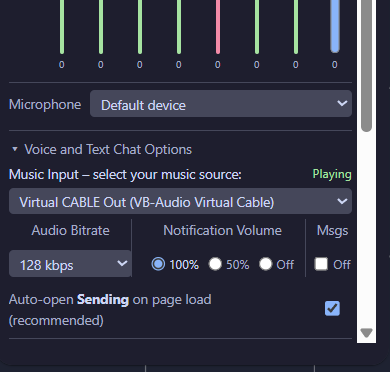
GM-only controls (inside the collapsible "Voice and Text Chat Options" section):
- Music Input - select the audio device to use as the music source. The dropdown is locked while music is playing, and trying to select the dropdown will cause the 'Playing' indicator to flash as explanation for the lockout.
- Audio Bitrate - choose between 64, 128, or 192 kbps (Opus codec). Higher bitrate means better audio quality but uses more bandwidth, which is particularly relevant when one or more players is being relayed through a TURN server, which will cost some money. 128 kbps is a good default for voice; 64 kbps and 192kbps also provided for use-cases where they are needed.
- Tone Volume - adjust the volume of join/leave/mention notification sounds (normal volume is '100%', quiet is '50%', and muted is 'Off').
- Diagnostic Chat toggle - disable (default) or enable the text chat for all players; label and checkbox turn red when in the exceptional 'enabled' state, because this is intended to support comms betwen members while troubleshooting the voice chat, and is expected to be disabled when everyone can hear everyone else!
- Auto-open - when enabled (recommended), the Sending popover opens automatically when players load the page. This ensures auto-rejoin activity is seen immediately after a browser tab reload.
TURN Server (Optional)
Most of the time, Sending connects players directly using STUN (a lightweight protocol for discovering your public IP address). This works on most home and mobile networks at no cost.
However, some players may be behind corporate firewalls, symmetric NATs, VPNs, or other restrictive network configurations that block direct peer-to-peer connections. In these cases, you can configure a TURN server to relay audio traffic with the same encryption and privacy as STUN connections.
⚠️ When You Might Need TURN
- A player simply cannot connect to others, even after retrying
- The Diagnostic Log shows ICE connection failures
- The player is on a corporate or university network with strict firewall rules
Why Not Use TURN All The Time?
Because the server is handling all the voice data that is being passed between the relayed members, there is a cost charged for the data transferred. This is usually very small, much less than one GBP/USD/EUR per Gigabyte, and for voice-only chats it is usually negligible, but a worst-cast scenario would be 8 players all relayed through TURN:
| Parameter | Value |
|---|---|
| Maximum voice bitrate | 192kbps (duplex) |
| Music channel for all players | fixed 192kbps |
| Total bandwidth | ~12Mb per ssecond |
| ~5.4GB per hour | |
| Typical cost per GB | £0.40 or $0.40 or €0.40 |
| Cost per hour | £2.16 or $2.16 or €2.16 |
⚠️ Of course, fewer players and/or lower voice bitrate will reduce these figures accordingly. Some TURN services offer a free quota, eg. 20GB/month.
Configuration
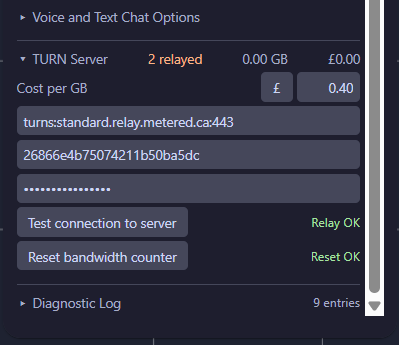
In the Settings panel, expand the TURN Server section. Enter:
- Server URL -- the address of your paid TURN server (e.g.
turn.example.com:3478orturns.secure.com:3478). - Username and Credential - the authentication details for your paid TURN server.
These values are shared with all players in the room automatically via OBR room metadata, so if they fail to negotiate a direct STUN connection, their device will automatically fallback to the configured TURN relay.
Test Button
Click "Test connection to server" to verify that your TURN server is reachable and can allocate a relay. The result will show either "Relay OK" (green) or an error message (red).
Cost Estimator
Due to the costs associated with running a TURN relay, we have included the ability to keep track of how many chat members must use TURN, and what your ongoing cost estimate is. Immediately below th eTURN Server header you can enter your 'Cost per GB' of data, using the currency symbol field and entering the cost per Gigabyte quoted to you in your TURN subscription.
The TURN Server header shows live statistics:
- Relayed count - how many players are currently using the TURN relay
- Estimated GB - total relay traffic for the current call session
⚠️this also shows a tooltip containing the most recent TURN bitrate (in kbps) when you hover your mouse over it
- Estimated cost - based on the configurable cost-per-GB
This helps you keep an eye on relay costs for a hosted TURN service. If you want to zero the cumulative record of bandwidth used to date, you can click on the Reset bandwidth counter button and you will see "Reset OK" (green), and the GB value and estimated cost values in the Turn Server header will also go to zero.
Diagnostic Log (GM only)
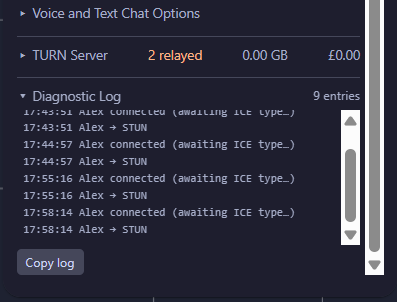
A collapsible record of the last 200 lines of connection events, errors, and state changes. Useful for troubleshooting connectivity but not saved at session close. Includes a "Copy log" button, to allow you to paste the ocntents into a support conversation.
Troubleshooting
"My microphone is not working"
- Make sure you granted microphone permission when your browser asked. You may need to click the lock/camera icon in the address bar and re-enable it
- Check that the correct microphone is selected in the Settings panel
- Some browsers require a user gesture (like clicking a button) before they allow microphone access. Clicking "Join Call" should satisfy this
"I cannot hear other players"
- Check that you are not deafened (the "My Mix" button should not be visible and not red)
- Check the volume sliders for the players you cannot hear - they may be turned down
- Make sure your system audio output is set to the correct device (headphones, speakers, etc.)
"There is echo or feedback"
- Use headphones. Echo is almost always caused by your speakers playing audio that your microphone picks up. Headphones eliminate this entirely
- If headphones are not available, lower other players' volumes or your system volume, or move you microphone closer to your mouth
"A player cannot connect at all"
- Ask them to reload their browser tab and try joining again
- If the problem persists, try configuring a TURN server (see above)
- Check the diagnostic log in the Settings panel for specific error messages
"The extension is not appearing"
- Make sure the extension URL is correct and accessible
- Try removing and re-adding the custom extension in OBR
Support
Discord is the main OBR community hub and the place to find help and answers - you can join it through this invite link: https://discord.gg/u5RYMkV98s and then search for "Sending - integrated secure voice chat" to find the conversation about this extension, or just open a new bug report in the ❓ | #extension-help channel.
Privacy Features
Sending is designed with privacy in mind:
- No audio recording. Voice data is never stored on any server, tt flows directly between players' browsers
- No tracking. The extension does not collect any personal information
- Encrypted connections. All WebRTC connections use DTLS-SRTP encryption by default; your audio is encrypted in transit
- Microphone access is on-demand. The extension only accesses your microphone when you actively join a callm leaving the call releases the microphone immediately
- TURN relay (if configured) does pass audio through a server, but the audio remains encrypted end-to-end. The TURN server cannot decrypt your audio content
- Room metadata Sending stores small amounts of non-sensitive data (avatar selections, layout preferences, call flags) in OBR room metadata so that settings persist across page reloads. No audio or chat content is stored in metadata
Icon Credits
| Icon | Description | Author | Licence |
|---|---|---|---|
| Crown coin (TURN relay indicator) | Shows that a player's connection is being relayed through a TURN server | Lorc via game-icons.net | CC BY 3.0 |
| Lightning bolt (STUN direct indicator) | Shows that a player has a direct peer-to-peer connection via STUN | Inline SVG | -- |
All other icons (microphone, speaker, music note, cog, chevrons, layout dots, etc.) are original inline SVG components.